
 Account

V-Ray AI Enhancer: Boost Realism in Renders with Chaos Cloud
POSTED 21st OF Aug, 2025, Posted by Summer

POSTED 21st OF Aug, 2025, Posted by Summer
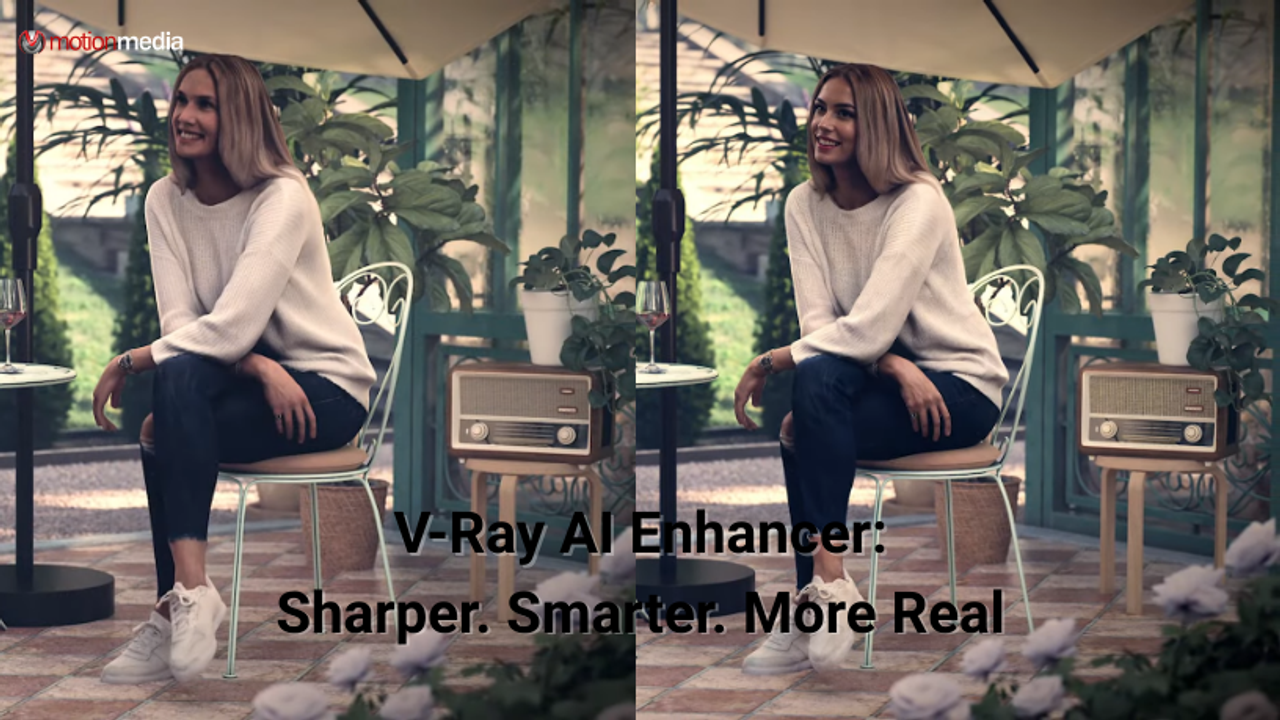
When it comes to creating photorealistic renders, small details make a huge difference. Facial features, clothing textures, and even the bark on trees can be the deciding factor between a “good” render and a truly lifelike one. That’s exactly what V-Ray’s new AI Enhancer is designed to deliver.
This update, available now in V-Ray 7, Update 2, introduces AI-driven enhancements that sharpen and refine the details in your renders, especially for people and vegetation. Let’s dive into what it does, how it works, and why it’s a must-try for anyone looking to push the boundaries of realism.
The AI Enhancer is a new feature in V-Ray that intelligently boosts the realism of your renders. Instead of spending hours fine-tuning post-production adjustments, you can now rely on AI to:
In short, it’s like having an AI-powered polish button for your renders.
Setting it up is straightforward, and the workflow fits seamlessly into your existing V-Ray pipeline.
Before you start rendering, make sure the V-Ray Enhancer Data Render Element is added in your render settings. This prepares your render for enhancement later.
Once the rendering is complete, you’ll see the AI Enhancer button. A single click applies the enhancement instantly.
You can enhance renders in two additional ways:
This flexibility means you can revisit older renders and give them a fresh, polished look.
You can upload your render to Chaos Cloud by selecting an existing project or creating a new one. Once uploaded, your images will be stored and ready for enhancement.
From the Chaos Cloud project page, simply open your image and hit the Enhance button. The AI Enhancer will:
The built-in comparison tools let you toggle between your original render and the enhanced version. You can even use the Compare mode to see subtle (but powerful) improvements side by side.
Time is precious in 3D workflows, and polishing realism often requires countless manual tweaks. With V-Ray AI Enhancer, you:
This isn’t just a productivity tool; it’s a creativity booster, freeing you to focus on design while AI handles the heavy lifting.
In Chaos’ official video walkthrough, you’ll see exactly how the AI Enhancer works from setup to final results.
The results speak for themselves. Subtle improvements in faces, clothing, and vegetation add a level of polish that makes renders truly shine.
The new V-Ray AI Enhancer is more than just an update; it’s a leap forward in AI-assisted rendering. By sharpening details, refining textures, and upscaling images, it brings your work closer to photorealism with minimal extra effort.
If you’re a V-Ray user, this tool is a must-try. And if you’ve ever struggled with making your people or vegetation look just right, this update will feel like a game-changer.
You can try the AI Enhancer today in V-Ray 7, Update 2.
Share: