
 Account

3DGarden: The Native Vegetation Ecosystem for ForestPack
POSTED 23rd OF Oct, 2026, Posted by Summer Magdaraog

POSTED 23rd OF Oct, 2026, Posted by Summer Magdaraog

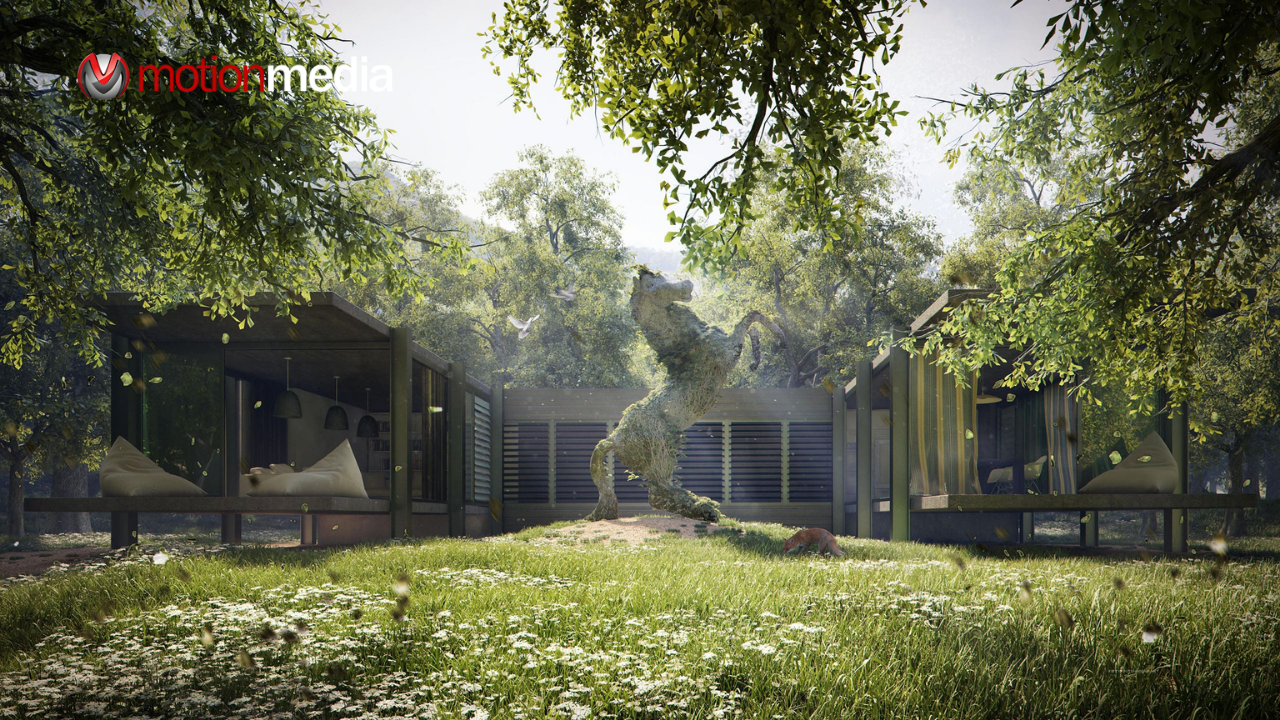
Creating realistic outdoor environments in architectural visualization requires more than adding trees and plants to a scene. Artists need vegetation that looks convincing at different viewing distances, fits the landscape design, and can be distributed across a scene without manually placing every individual plant.
ITOOSOFT’s 3DGarden is a vegetation asset library designed for ForestPack Pro in Autodesk 3ds Max. It brings together photo-scanned trees, bushes, flowers, and ground-cover plants, with assets integrated into ForestPack’s Library Browser.
The collection combines individual plant models, ready-to-use presets, and options for creating custom vegetation combinations. By using these assets with ForestPack’s distribution and clustering tools, artists can build planting layouts for architectural visualization and other 3D environments while retaining control over placement, density, and variation.
3DGarden is ITOOSOFT’s collection of vegetation models developed for use with ForestPack. It is an asset library rather than a separate scattering plugin: ForestPack provides the tools for distributing the models, while 3DGarden supplies the vegetation used to populate the scene.
The collection is organized into three main libraries: World Trees, Bushes and Flowers, and Ground Covers. Each serves a different role in landscape creation, from establishing the structure of an outdoor environment to adding smaller plants and ground-level detail.
ITOOSOFT develops its vegetation assets using photo-scanning techniques and real-world botanical references. The models combine detailed geometry with scanned textures to represent the distinctive forms and characteristics of different plant species.
After installation, the assets can be accessed through ForestPack’s Library Browser. This integration allows artists to select individual models or available presets and use them within an established scene-population workflow.
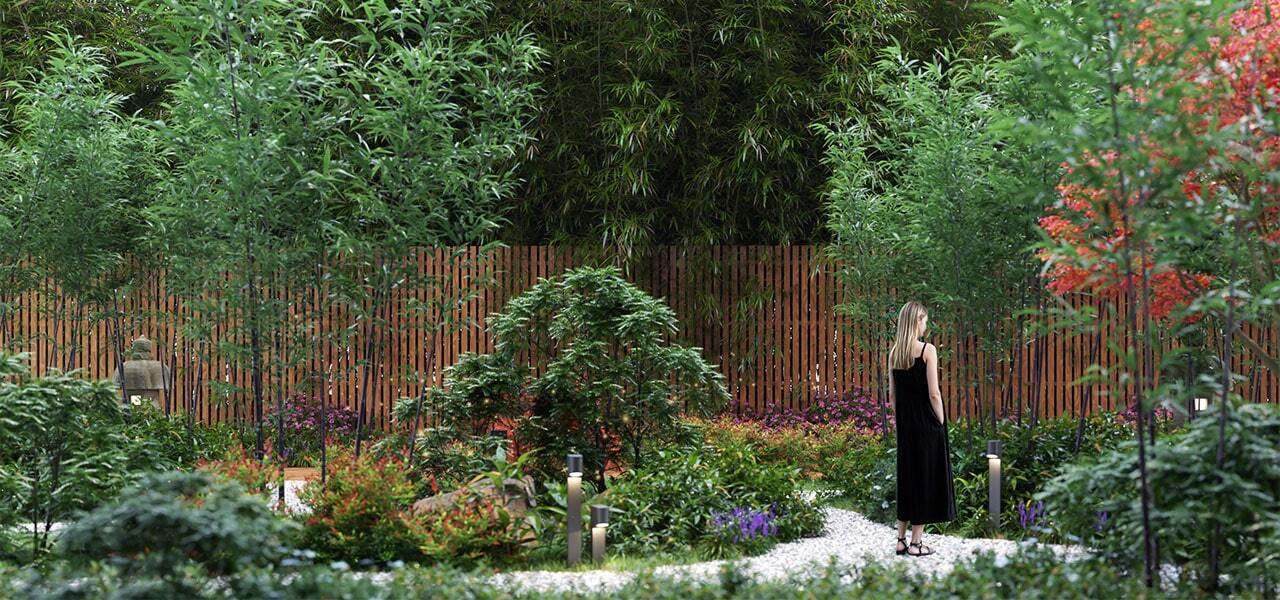
The three 3DGarden collections cover different types of vegetation. The appropriate starting point depends on the scene, the species required, and the areas that need to be populated.
| Collection | Published collection details | Suitable applications |
| World Trees | 52 tree species and more than 378 individual assets | Residential developments, streets, parks, forests, and large exterior environments |
| Bushes and Flowers | 112 plant species and more than 660 individual assets | Garden borders, ornamental planting, flowering areas, shrubs, and mixed vegetation |
| Ground Covers | 100 species, including grasses, small plants, and flowering vegetation, with ready-to-use presets | Lawns, meadows, flower beds, woodland floors, and ground-level landscape detail |
Collection specifications are based on ITOOSOFT’s published product information. See each official collection page for the latest details.
The World Trees collection includes 52 tree species and more than 378 individual assets. Its range covers European, North American, Mediterranean, tropical, and other exotic vegetation, offering options for different landscape styles and project settings.
The collection features photo-scanned trunk geometry and textures. Selected species also include seasonal, age, or growth variations, allowing artists to choose trees that better match the intended appearance of a scene. Some species are available in summer, autumn, or snow-covered versions.
These options are useful when creating outdoor environments in which trees play a prominent visual role. Detailed trunks and foliage can be particularly important when trees appear near the camera, frame a building, or occupy a substantial portion of an architectural render.
For larger scenes, ForestPack’s instancing capabilities provide a way to distribute the selected tree models throughout the environment without manually duplicating and positioning every tree.
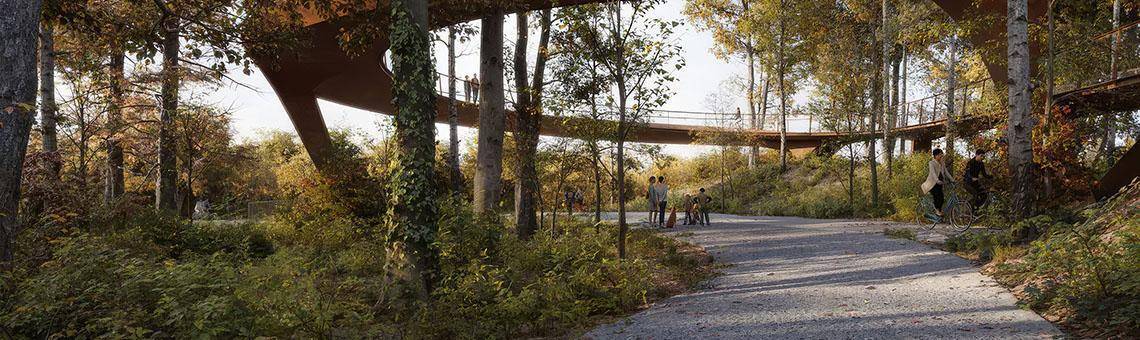
The Bushes and Flowers collection contains 112 plant species and more than 660 individual assets. It covers ornamental shrubs, flowering plants, herbaceous species, grasses, and other smaller vegetation.
This collection is relevant to scenes that require more than trees to establish the landscape. Artists can combine shrubs, flowers, and lower-growing plants to create planting borders, residential gardens, landscaped public spaces, and more naturalistic environments.
Selected species include variations in size, growth form, colour, and flowering state. These options provide additional flexibility when building planting arrangements that need visual variety rather than a uniform pattern of repeated models.
Individual assets can be combined according to the requirements of the scene, while ForestPack’s distribution and clustering controls can help arrange complementary species across designated areas.

The Ground Covers collection focuses on the vegetation that fills the spaces between larger landscape elements. It includes grasses, field plants, low-growing species, decorative flowers, and other natural surface details.
The collection also includes ready-to-use ForestPack presets for arrangements such as lawns, fields, flower beds, and mixed planting. These provide a starting point for populating larger areas without assembling every vegetation combination manually.
Ground cover is particularly useful for connecting different parts of a landscape. Low-growing plants can soften the edges of pathways, fill areas around trees and shrubs, and help establish visual continuity across lawns, meadows, and woodland floors.
Artists can start with a preset where one is available or select individual assets to create a more specific arrangement.
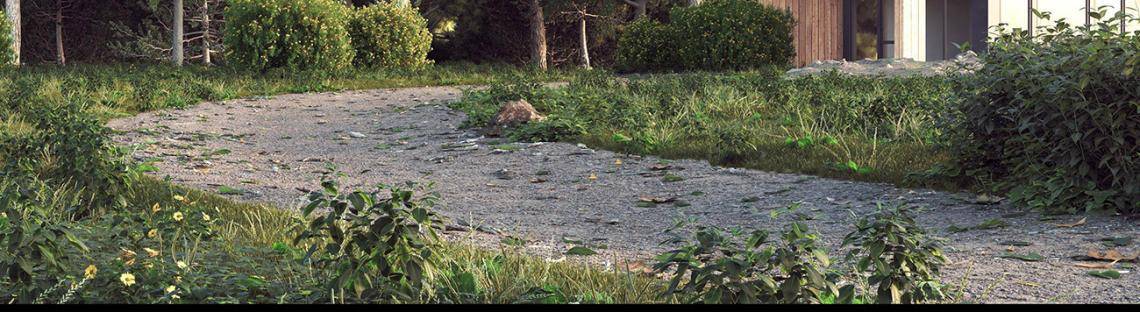
3DGarden is designed to fit into ForestPack’s existing vegetation distribution workflow. Instead of sourcing and organizing plant models separately, artists can access the installed collections through the ForestPack Library Browser.
A typical workflow can be organized into five steps.
This approach separates asset selection from scene distribution. Artists choose the vegetation that suits the project, then use ForestPack’s controls to determine how it is arranged throughout the environment.
For installation instructions and additional technical details, consult ITOOSOFT’s official 3DGarden documentation.
Vegetation realism depends on more than the number of plant models available. Geometry, texture quality, natural variation, and the characteristics of individual species all influence how vegetation appears in a rendered image.
ITOOSOFT uses photo-scanning techniques to capture details from real vegetation. The World Trees collection, for example, features scanned trunk geometry and textures, while the wider 3DGarden range includes vegetation models with detailed foliage and high-quality scanned textures.
These details are relevant when a plant occupies a prominent part of the frame. Trees in the foreground, flowering plants near a building, and vegetation along a pathway may reveal differences in shape and texture that are less noticeable in distant areas.
The amount of detail required also depends on the scene. A close-up architectural render may call for carefully selected foreground assets, while a large landscape may require a broader distribution of vegetation across the environment.
ForestPack’s instancing tools help manage the distribution of assets, but render times and memory requirements still depend on factors such as scene complexity, hardware, renderer, geometry, and distribution settings.
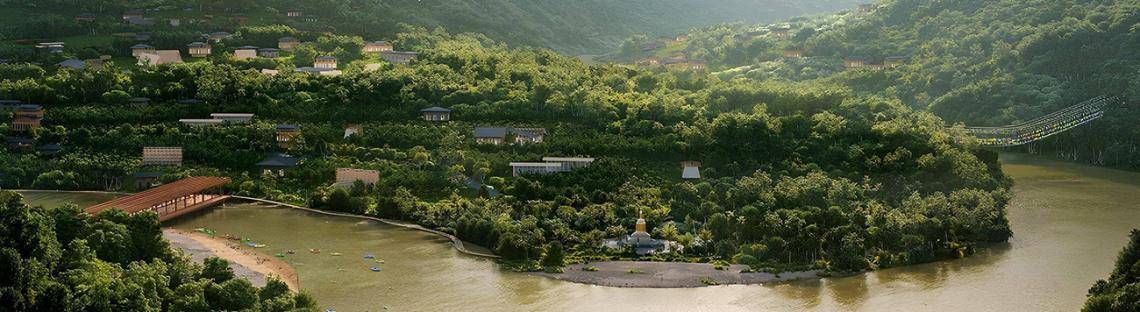
The most suitable collection depends on the vegetation required and how it contributes to the overall composition.
For more comprehensive exterior environments, the collections can complement one another. Trees establish height and structure, bushes and flowers create intermediate layers, and ground cover connects the planting to the surrounding terrain.
This layered approach provides a practical way to evaluate the collections according to the scene’s requirements rather than selecting assets solely by quantity.
ITOOSOFT offers individual 3DGarden libraries and bundle options. Check the official 3DGarden product page for current collection availability and bundle contents.
3DGarden is designed for use with ForestPack Pro in Autodesk 3ds Max. ITOOSOFT’s documentation identifies materials for V-Ray and Corona Renderer as part of the 3DGarden workflow.
Before installing or purchasing a collection, verify compatibility with your existing software environment. Check the current ForestPack requirements for supported 3ds Max versions and renderer integrations, and confirm that the materials required by your project are available for the relevant library items.
You can review ITOOSOFT’s 3DGarden documentation and ForestPack requirements for additional information.
Realistic vegetation is an important part of architectural visualization, but managing the placement and variety of plant assets can also affect the efficiency of a production workflow.
ITOOSOFT’s 3DGarden provides dedicated collections for trees, bushes, flowers, and ground cover, while ForestPack supplies the tools artists use to distribute and vary those assets throughout a scene.
For visualization artists, architects, and 3D production teams working in Autodesk 3ds Max, understanding how these tools work together can help when planning a vegetation workflow.
Looking to add ForestPack to your 3ds Max workflow? Explore ITOOSOFT software licensing options through Motion Media, an authorized reseller of ITOOSOFT products.
Share: