
 Account

3ds Max Subscription "An error occurred while preparing installation"
POSTED 16th OF Jan, 2022

POSTED 16th OF Jan, 2022

If you are experiencing installation issues with your 3ds Max Subscription or other Autodesk software, follow the troubleshooting guide below.
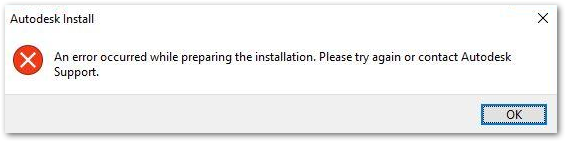
When trying to install Autodesk software, you may encounter the following error message:
Try the following methods to resolve the installation error.
Install the latest version of the Autodesk Licensing Service before reinstalling the software.
C:\Program Files\Autodesk\AdODIS\V1.RemoveODIS.exe as Administrator.By default, all 2022+ Autodesk installers attempt to update ODIS before installation. If the update fails, installation may not start. To bypass this, use the steps below:
cd C:\Autodesk\AutoCAD_2022_English_Win_64bit_dlm\
--noupdate parameter:Setup.exe --noupdate
If the problem continues after applying the above fixes, review your installation log file to identify the failure point. See Autodesk’s guide on How to identify an installation failure point in Setup.log file.
Tip: Always make sure your internet connection is stable and temporarily disable antivirus or firewall software during installation if they are interfering with the process.
Share: