
 Account

RealityScan 2.2 Adds AMD GPU Support, 360 Camera Workflow Improvements, and Bug Fixes
POSTED 24th OF Jun, 2026, Posted by Summer Magdaraog

POSTED 24th OF Jun, 2026, Posted by Summer Magdaraog

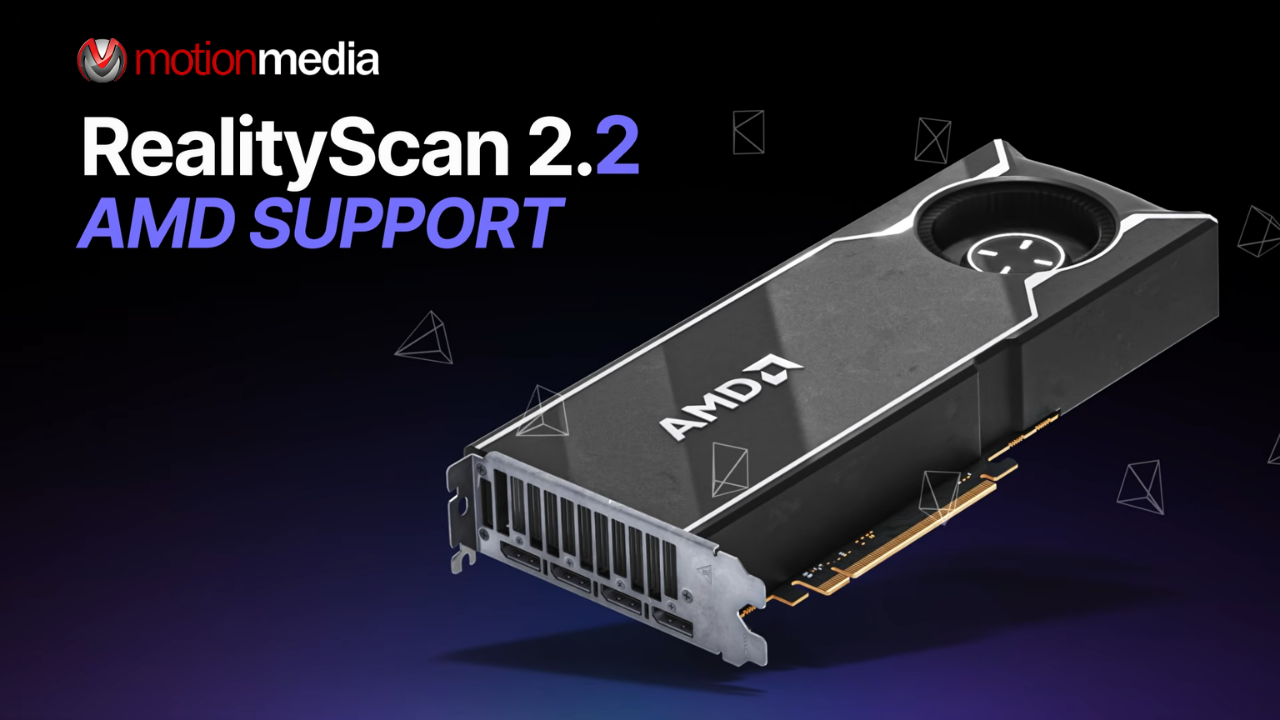
RealityScan 2.2 is now available with support for AMD GPUs, a new workflow for processing 360 camera images, and multiple fixes across alignment, texturing, editor tools, and command-line operations.
This update removes the NVIDIA-only requirement for GPU acceleration and expands hardware options for RealityScan users running photogrammetry and reality capture projects.
RealityScan 2.2 adds support for AMD Radeon and Radeon PRO GPUs on Windows.
Previously, GPU-accelerated reconstruction was only available on NVIDIA hardware. With this release, AMD GPUs can now accelerate the same reconstruction stages supported on NVIDIA GeForce and Quadro GPUs.
RealityScan also supports mixed-GPU systems. Users can install both AMD and NVIDIA GPUs in the same workstation, and RealityScan will distribute reconstruction workloads across all supported GPUs simultaneously.
AMD GPU support is currently available on Windows. Linux support is planned for a future release.
RealityScan 2.2 introduces a documented workflow for processing images captured with 360-degree cameras.
A 360 camera can capture an entire environment in a single image, making it useful for scanning interiors, large spaces, and environments where capturing traditional photos would take more time.
Most 360 cameras output images in equirectangular format. These images contain a full 360-degree horizontal view and a 180-degree vertical view of the scene.
Because photogrammetry workflows typically use standard perspective images, RealityScan recommends converting equirectangular images into cube-face views before processing.
RealityScan provides a web-based tool that converts equirectangular images into cube-face images that can be imported into a project.
The conversion process generates:
The generated metadata helps RealityScan align images more accurately because the software already knows the camera properties and field of view.
Since equirectangular images are already undistorted, RealityScan can skip certain correction steps when accurate metadata is available.
The default cube-map configuration uses a 90-degree field of view for each face.
Users can increase the FOV up to 120 degrees.
A wider field of view creates overlap between cube faces, which can improve image alignment because more visual information is shared between adjacent images.
The conversion tool automatically calculates the recommended face size based on the selected field of view.
Users can manually specify a face size if they need to reduce storage requirements.
The conversion tool can generate XMP sidecar files containing camera metadata.
These files provide information such as:
When imported with the images, this data can improve alignment accuracy and reduce processing time.
RealityScan provides several recommendations for capturing images with 360 cameras.
Higher-resolution images contain more visual detail and provide more information for reconstruction.
Make multiple passes through the area being scanned rather than relying on a single walkthrough.
Additional passes increase coverage and improve alignment opportunities.
Capture the scene from noticeably different heights.
The variation creates parallax, which helps RealityScan determine spatial relationships between images.
A starting target of 70% to 80% overlap between frames is recommended.
If alignment issues occur, increase frame density by capturing more images.
If alignment is successful but processing takes longer than necessary, image density can be reduced.
Smaller rooms and environments with nearby objects require more frequent image captures because the scene changes more quickly as the camera moves.
Large open spaces generally require fewer images because the scene changes more slowly.
Walking speed also affects image spacing. Moving too quickly through a dense environment can reduce overlap and make alignment more difficult.
RealityScan 2.2 includes several fixes for editor-related issues.
Fixed issues include:
Several alignment-related issues have been resolved.
Fixes include:
RealityScan 2.2 fixes an issue where reprojecting textures between two planes could create visible pattern artifacts in displacement maps.
The update also includes fixes for command-line workflows.
Resolved issues include:
RealityScan 2.2 introduces AMD GPU support, allowing Radeon and Radeon PRO users to access GPU-accelerated reconstruction workflows previously limited to NVIDIA hardware. The release also adds a documented workflow for using 360 camera imagery in photogrammetry projects and includes fixes across alignment, texturing, editor tools, and CLI operations.
Users running RealityScan on Windows can download the update now, while Linux support for AMD GPUs is planned for a future release.
Motion Media is an authorized RealityScan reseller serving creative professionals, visualization teams, surveyors, and reality capture specialists.
If you're looking for RealityScan licenses, upgrades, or deployment guidance, contact Motion Media for pricing and product assistance.
Share: